

Configure Authentication Providers
Create an OAuth app
Section titled “Create an OAuth app”This step will vary wildly from provider to provider. Please refer to your provider’s documentation for the specific steps.
No matter your provider, you will need a redirect URL. This redirect URL must have the following format: $ORIGIN/login/redirect.
$ORIGIN refers to the ORIGIN environment variable that defines the public host at which your wanderer instance can be reached.
So for the default installation, the redirect URL is http://localhost:3000/login/redirect.
In any case, once you have successfully created your OAuth app you will receive a Client ID and a Client Secret.
Enable a provider in PocketBase
Section titled “Enable a provider in PocketBase”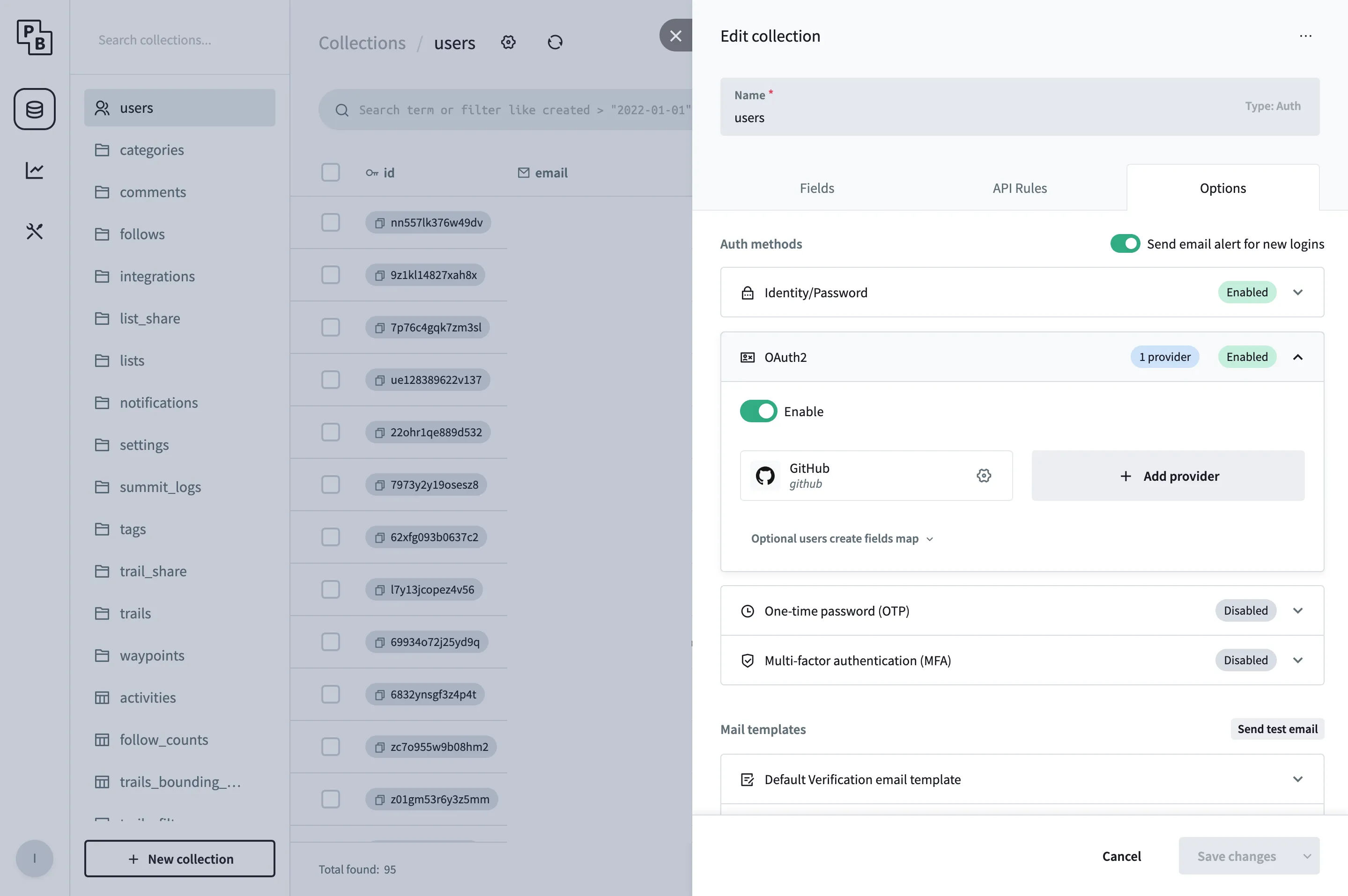
In the PocketBase admin panel navigate to the users table. Click the gear icon at the top to open the table’s settings and navigate to Options.
In the tab OAuth2, add your provider and fill in the Client ID and Client Secret from the step before and save your changes.
Providers that reject the default scopes
Section titled “Providers that reject the default scopes”wanderer requests the scopes openid, profile and email from every OIDC provider. Some providers reject an authorization request that contains scopes they do not know, instead of ignoring them, and the login then fails before the consent screen appears.
For those providers set the scope list on the db service, using the variable for the slot the provider is configured in: OIDC_SCOPES for oidc, OIDC2_SCOPES for oidc2 and OIDC3_SCOPES for oidc3. Slots without an override keep the default scopes, so other OIDC providers are not affected.
OpenStreetMap
Section titled “OpenStreetMap”OSM accepts neither profile nor email. openid is enough for login. If OSM is configured as oidc:
services: db: environment: OIDC_SCOPES: "openid"Accounts created through OSM may receive a generated username such as users729068 when the OSM display name cannot be used as the username, for example because it contains characters the field does not allow or is already taken.
Disable password authentication
Section titled “Disable password authentication”After enabling the neccessary OAuth2 providers for your application you may want to disable the standard local password authentication.
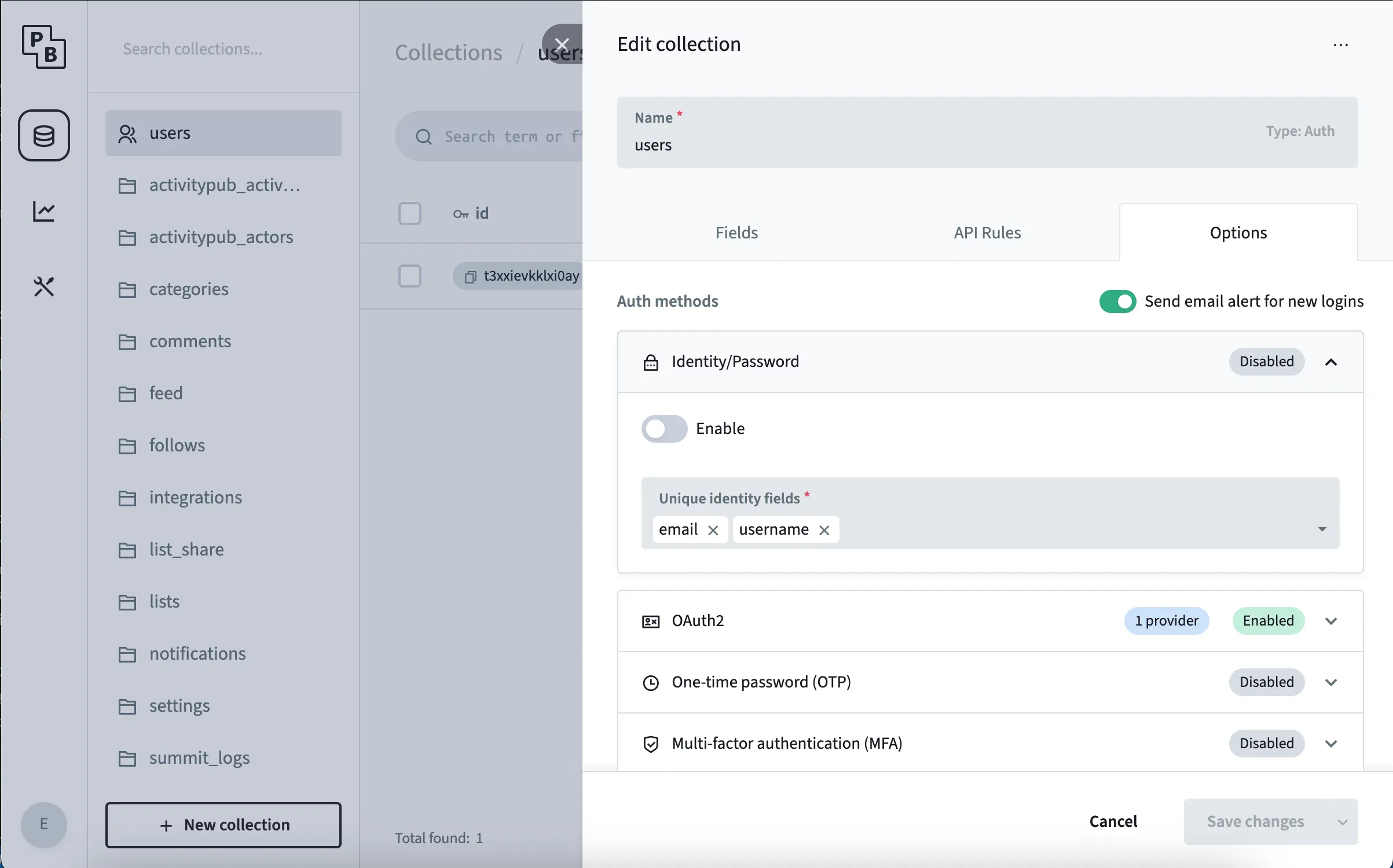
In the PocketBase admin panel navigate to the users table.
Click the gear icon at the top to open the table’s settings and navigate to Options.
In the tab Identity/Password, toggle the switch and save the configuration.