

Plugins
Plugins add optional functionality that is not built into the core application. Once an administrator has installed a plugin, it appears in the plugin settings page where users can configure and enable it.
Plugin installation and self-hosted connector trust settings are administrator tasks. See Plugin installation for runtime bundle and connector details.
Strava Plugin
Section titled “Strava Plugin”Creating an App in Strava
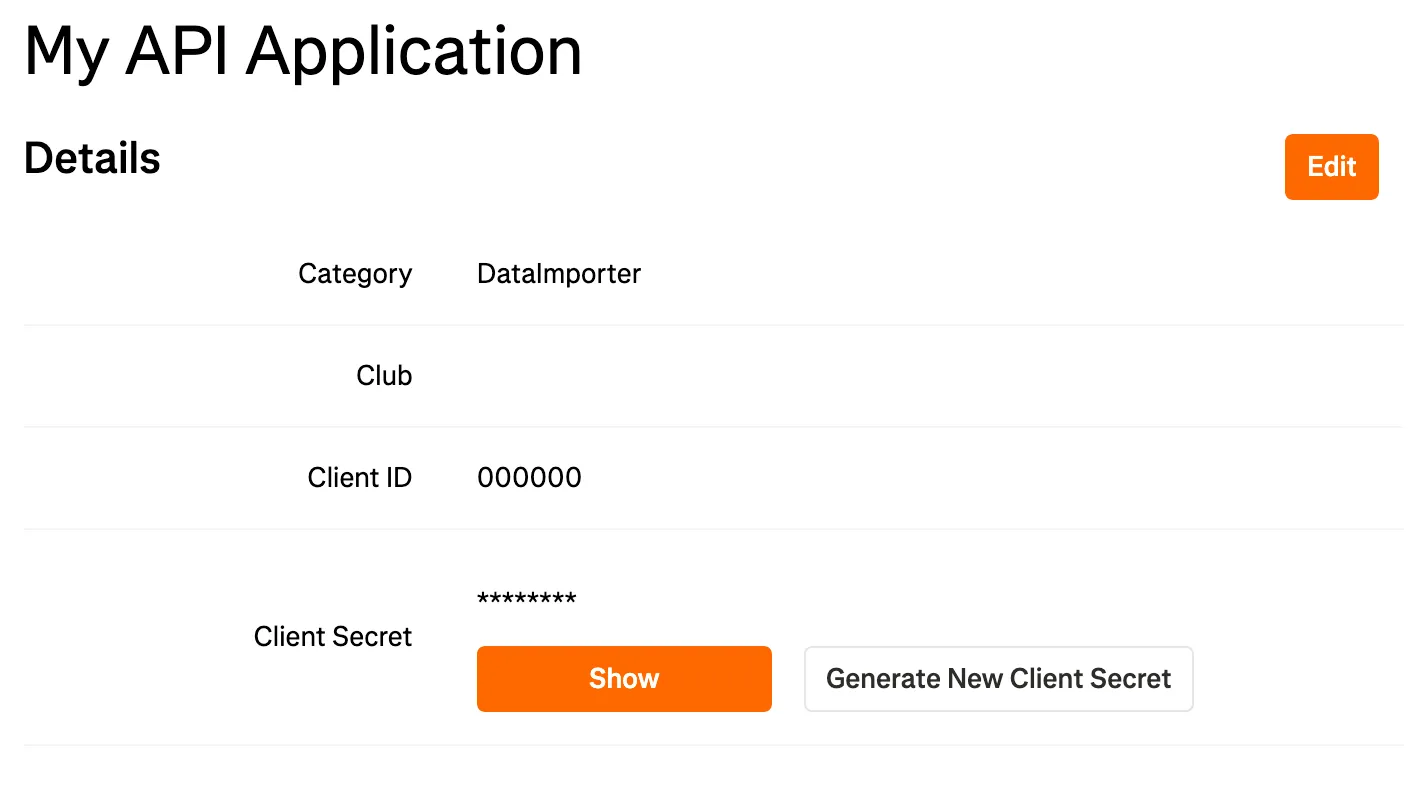
Section titled “Creating an App in Strava”Before integrating Strava with wanderer, you need to create an API application in Strava. Visit Strava’s API settings and follow the steps to create a new API application. Your setup should resemble the following:
Setting Up the Plugin
Section titled “Setting Up the Plugin”- Copy the Client ID and Client Secret.
- Go to the plugins page in wanderer’s settings.
- Click the settings button for the Strava plugin.
- Enter your Client ID and Client Secret.
- Choose whether you want to sync routes, activities, or both.
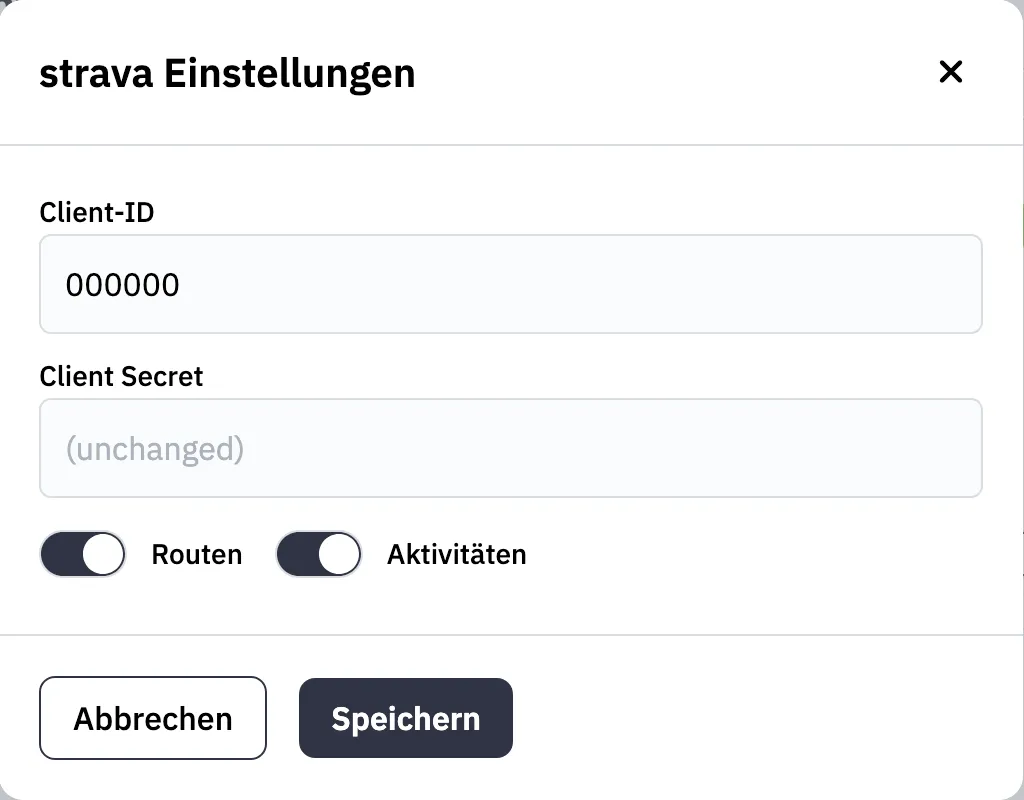
- Click Save & connect.
- You will be redirected to Strava’s authorization page. Keep all checkboxes selected and click Authorize.
- You will then be redirected back to wanderer.
- Toggle the plugin on. It is now active.
If you later change the Client ID or Client Secret, reconnect the plugin. Other settings can be saved without repeating the OAuth flow.
komoot Plugin
Section titled “komoot Plugin”The komoot plugin requires only your komoot username and password:
- Open the komoot settings from the plugins menu.
- Enter your komoot credentials.
- Save the settings.
- Toggle the plugin on. It will become active immediately.
Your planned and completed trails will now sync with wanderer.
Hammerhead Plugin
Section titled “Hammerhead Plugin”The Hammerhead plugin requires your Hammerhead account details:
- Open the Hammerhead settings from the plugins menu.
- Enter your Hammerhead email and password.
- Choose whether you want to sync planned tours, completed tours, or both.
- (Optional) Set an “ignore trails before” date to avoid syncing duplicates if your Hammerhead account is already connected to other services.
- Save the settings and toggle the plugin on. It will become active immediately after a successful login.